Sing it. Play it. Conduct it.

Solo with your voice. Or play the whole orchestra with it.

SoloVoice turns your live vocal into chart-aware, highly expressive MIDI for real-time performance, putting a world of virtual instruments under the control of your voice. Load your chart and it follows the changes: every note lands in the chord and scale of the bar you're in, its velocity and expression shaped by your breath.

Full Orchestra edition, 7-day trial, no credit card needed · VST3 for Apple Silicon Macs (M1 or later), hosted in Blue Cat’s PatchWork · System requirements · two editions from $149 · secure checkout by Gumroad

Your voice goes in. The band comes out swinging.

Video: soloing with SoloVoice and SWAM Saxophones. The sung line is converted live into MIDI — its breath envelope shaping each phrase with feeling, then playing voiced chords through a thirteen-piece big band arrangement.

Want the full picture? Watch the five-minute walkthrough ▾

Inside the app

Tap a marker to see what each part of SoloVoice does. Every one of these is a knob you'll reach for in the first hour.

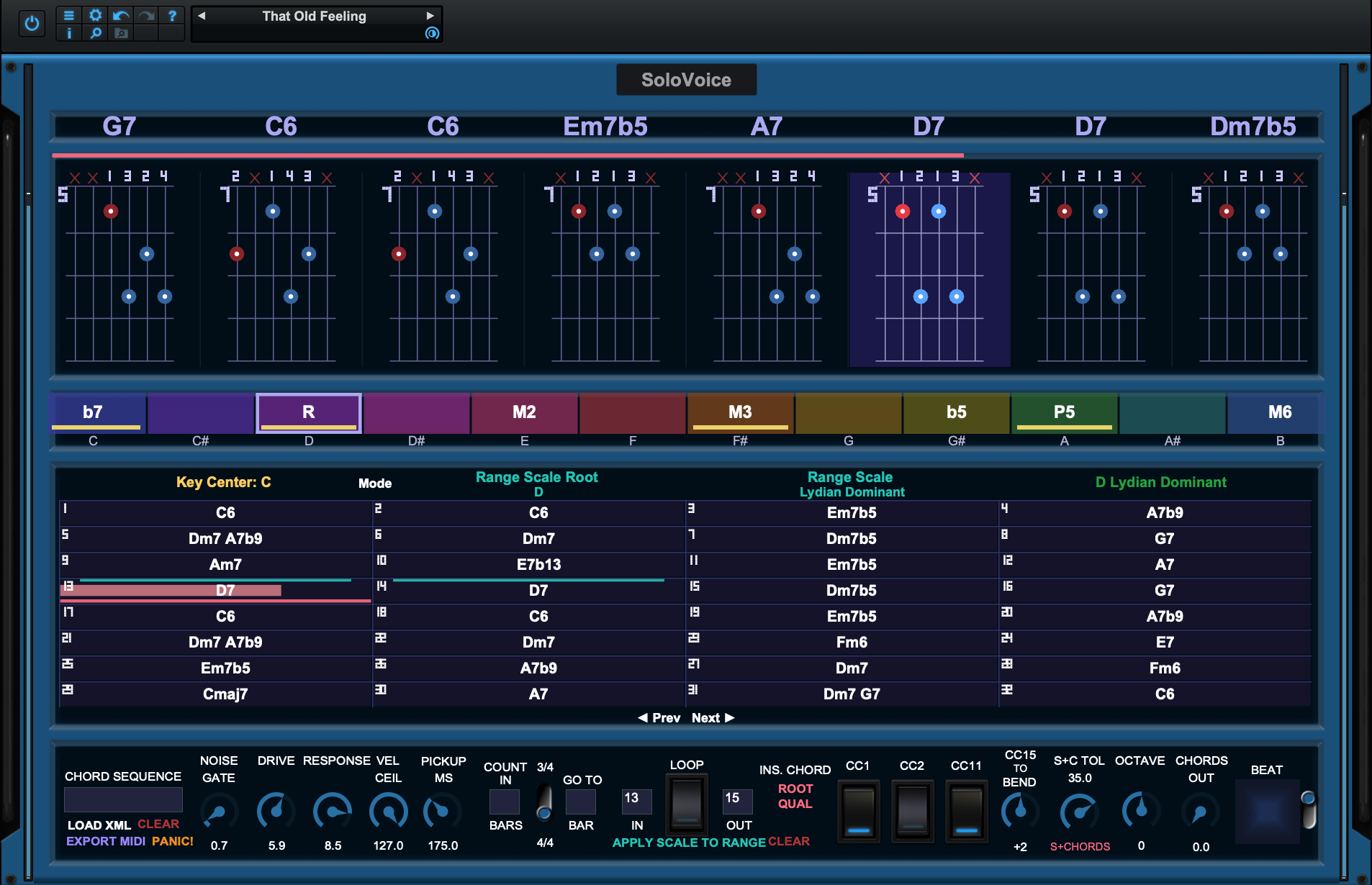
The SoloVoice interface: chord track with guitar voicings, chroma strip, progression grid and control strip.
1

Chord track

Your chart as a row of dynamically updating chord symbols and matching guitar shapes that ‘look ahead,’ so you always know what’s next in the song. The coral bar above them is the transport sweeping the row — and the highlighted diagram is "you are here," even inside a bar with four chords.

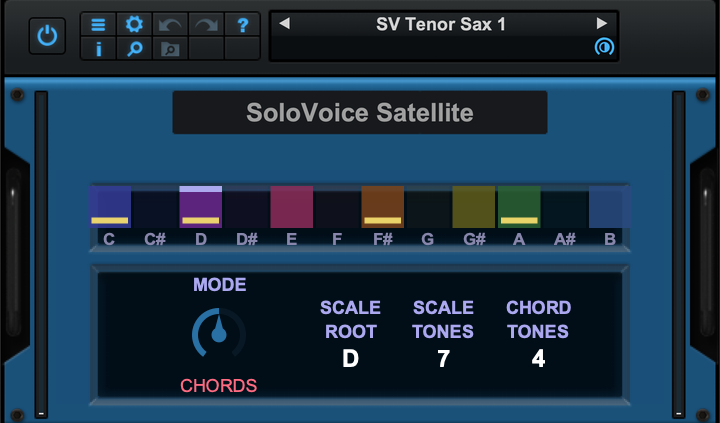
The SoloVoice Satellite panel: twelve palette lamps with gold chord-tone bands, MODE knob, root and tone-count readouts.

The Satellite

One plug-in, one control. Its lamps show the palette the conductor just announced — lit lamps are scale tones, gold bands are chord tones, the moving bright top band is the note sounding through this chair right now. MODE decides which of those this instrument obeys: SCALES for the full colour, CHORDS for the tightest, most consonant section sound, S+CHORDS for both.

Insert one per instrument, set MODE once, save the rig. It follows every override you make on the conductor without a click.

New · in beta

The Arranger

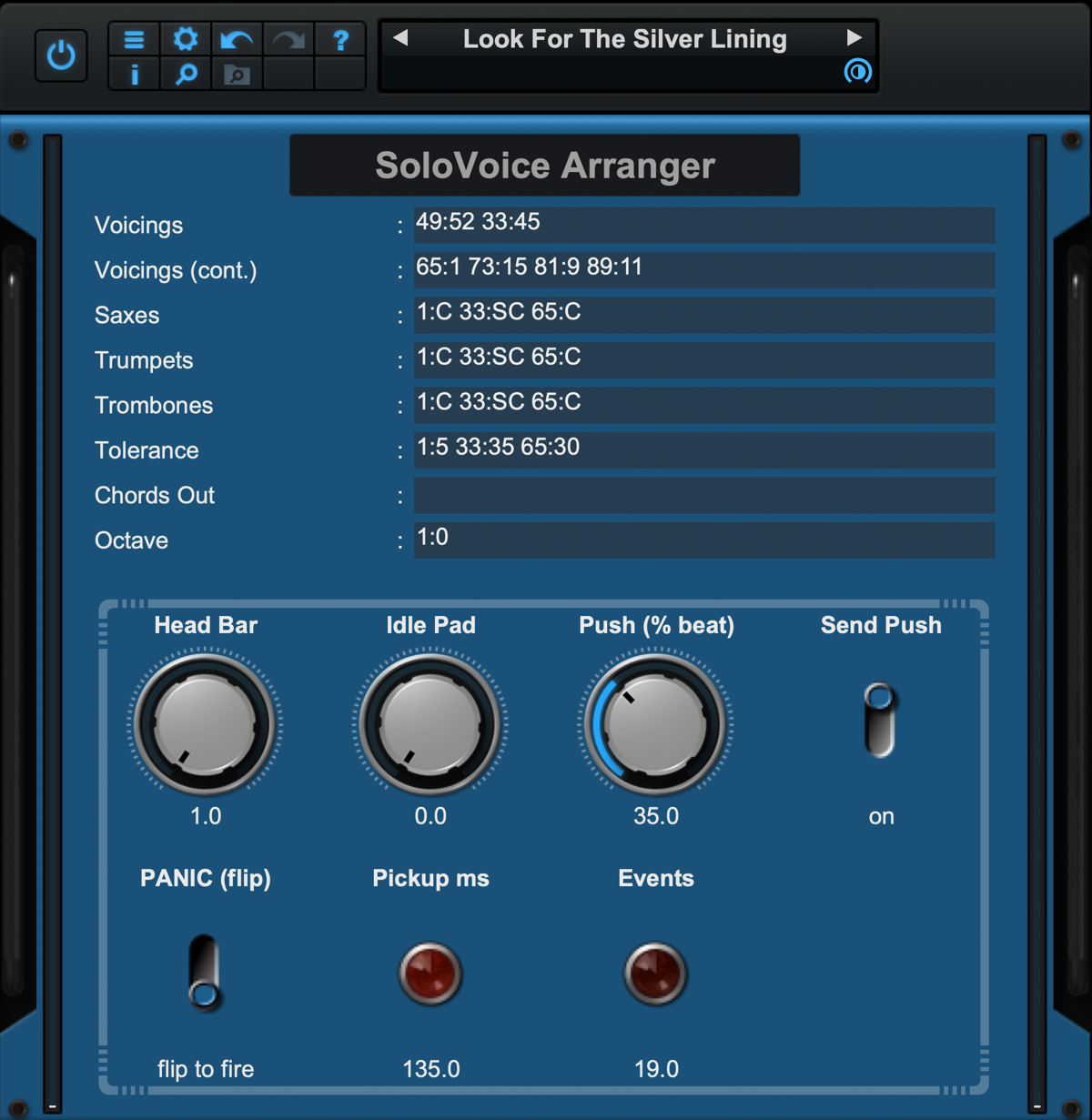
Orchestration by typing. Give it a bar number and a pad number — 49:52 means at bar 49, switch Divisimate to pad 52 — and the band changes voicing right there. No automation lanes to draw, no controller mapping, no wiring: in the Big Band Rig template it’s already routed and already set to send, and it follows PatchWork’s transport.

  • Section modes from the same box: 33:SC puts the saxes on S+CHORDS at bar 33, and back to CHORDS at 65.
  • Tolerance, Octave and Chords Out on the conductor, scheduled bar by bar.
  • Head Bar sets where the first measure of music lands after a count-in; Idle Pad picks the performance pad you want sounding before bar one, for a freeform intro. Push nudges every change ahead of the bar line so the band leans in like players do.
  • One flip of PANIC silences all thirteen chairs.

The Arranger is included with the Orchestra edition of SoloVoice. Built to work with Divisimate Core and SWAM Big Band instruments (both sold separately by their makers).

The SoloVoice Arranger panel: schedule fields for voicings, section modes, tolerance, chords out and octave, with Head Bar, Idle Pad, Push and PANIC controls.

The five-minute walkthrough

What SoloVoice does, how the rig fits together, and what you need to run it.

SoloVoice in Cubase — no PatchWork needed

No PatchWork, no Satellites. One audio track carries your mic, one instrument track runs SoloVoice, and Cubase’s own routing and Chord Track do the rest. Tested in Cubase 15 Pro on Apple Silicon with the Nextmidi SWAM Bigband Core template; the same wiring works with any instrument that takes MIDI. About 15 minutes. Track names like SoloVoiceIN and Mic are just what we call them — use whatever you like.

CubasePro or Artist (needs side-chain and the Chord Track).
SoloVoiceRun the SoloVoice installer first. Conductor edition installs SoloVoice; Orchestra edition also installs SoloVoice Arranger (and the Satellites, which Cubase doesn’t use). Both appear in Cubase’s Add Track ▸ Instrument list.
Your bandAny MIDI instrument; the big-band version shown uses Nextmidi’s SWAM Bigband Core template (Divisimate 2 + SWAM Big Band).
Your chartA MusicXML lead sheet (iReal Pro export works) loaded into SoloVoice with LOAD XML.

Three minutes, start to finish. The written steps below are the same recipe to keep open while you click — or download them as a PDF.

Mic interface input 1 SoloVoiceIN audio track · Monitor on output: No Bus SoloVoice instrument track side-chain in · MIDI in: none Divisimate Core in: SoloVoice – MIDI Out Monitor on 13 SWAM chairs Nextmidi template Follow Chord Track: Scales + Chords (bass trombone: Chords) audio send pre-fader, 0 dB MIDI voiced SoloVoice Arranger instrument track · MIDI in: none “Arranger to Core” MIDI track · in: Arranger out: Divisimate Core, ch 1 CC31 pad changes Chord Track chart as chord events re-snap audio / Cubase routing MIDI No Satellites in Cubase — Cubase’s own Chord Track does the per-chair snapping.
How the signal moves. Amber = audio and Cubase routing, blue = MIDI. The Arranger row is Orchestra edition only.
Show the 17 written stepsA · Audio  B · SoloVoice tracks  C · MIDI to the band  D · Chart & timing  E · Arranger  F · Chord Track  G · Play

A · Audio in and out

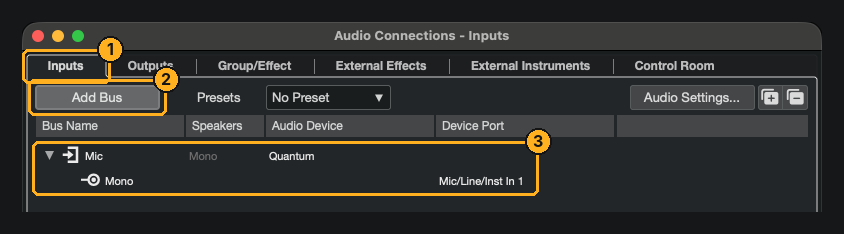
  1. Studio ▸ Audio Connections, Inputs tab (top-left): click Add Bus, choose Mono, name it Mic, click OK. Click the new bus’s Device Port column and pick the input your mic is plugged into.

    Cubase only lets a track use a bus that exists here — the mic bus is the one thing most templates don’t have.

    Audio Connections, Inputs tab, with a Mono bus named Mic on the interface's input 1
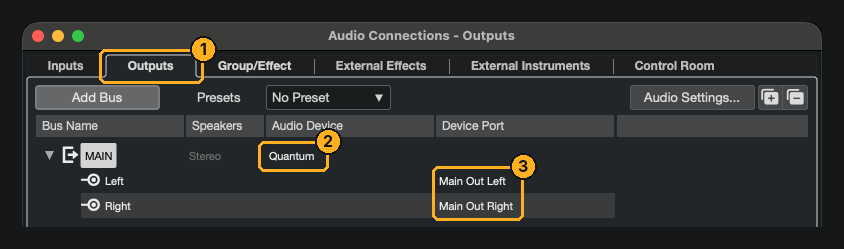
  2. Click the Outputs tab, click the Audio Device column on the MAIN row and pick your interface, then check Left/Right show its main outs. Close the window.

    Audio Connections, Outputs tab, MAIN bus assigned to the interface's main outputs

B · The two SoloVoice tracks

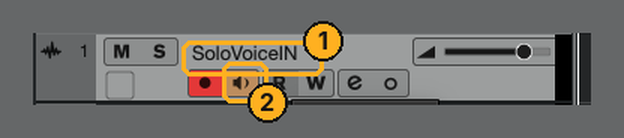
  1. Project ▸ Add Track ▸ Audio: Mono, Audio Inputs = Mic, name it SoloVoiceIN. In the track list, click its speaker-shaped Monitor button so it lights.

    Drag it to the very top of the track list if you like — just drop it above the Divisimate Core track, not into the Big Band folder.

    SoloVoiceIN audio track at the top of the track list with Monitor lit
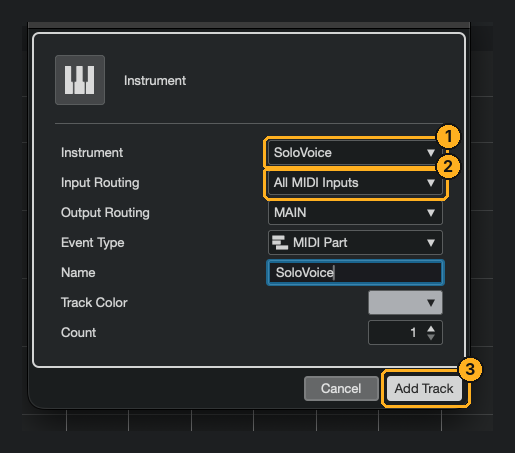
  2. Project ▸ Add Track ▸ Instrument: Instrument = SoloVoice, Input Routing = Not Connected, name it SoloVoice, click Add Track. The SoloVoice window opens.

    Not Connected keeps a stray keyboard from feeding SoloVoice’s snapper; the mic arrives by side-chain in the next step.

    Add Instrument Track dialog with SoloVoice selected
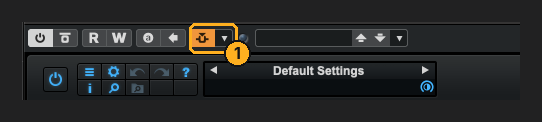
  3. In the dark strip across the top of the SoloVoice plug-in window (Cubase’s own header), click the Side-Chain button — the small arrow-into-box icon just left of the preset name box — so it lights orange.

    Cubase plug-in header with the side-chain button lit
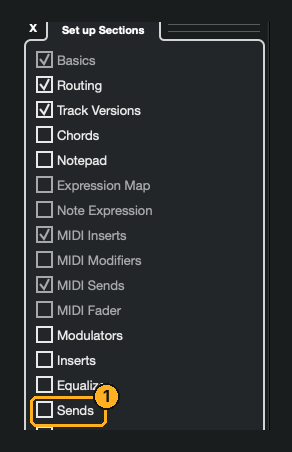
  4. Click the SoloVoiceIN track. If the Inspector on the left has no Sends section, click the empty space at the bottom of the Inspector, choose Set up Sections, and tick Sends. Open Sends, click the first slot, and pick Side-Chain Inputs ▸ 01 – SoloVoice.

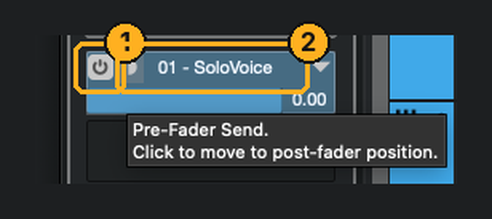
    Then make the send live: click the slot’s power button (it turns blue), and click the small pre/post button beside it until the tip reads Pre-Fader Send. Leave the level at 0.00.

    Cubase creates sends switched off and post-fader — both silently defeat the setup, so check the slot looks like this.

    Set up Sections list with Sends ticked Send slot powered on, pre-fader, going to 01 - SoloVoice
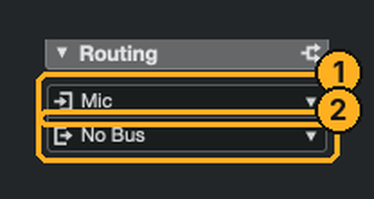
  5. Still on SoloVoiceIN, in the Inspector’s Routing section set the output (lower row) to No Bus. Hum into the mic: SoloVoice’s meters and note strip should move, and your own voice should no longer come out of the speakers.

    The send is pre-fader, so cutting the track’s output changes nothing on the way to SoloVoice. SoloVoice’s side-chain meters light on the second pair — that’s correct.

    Routing section showing input Mic and output No Bus

C · MIDI to the band

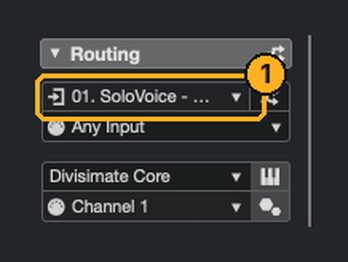
  1. Click the Divisimate Core track (or your instrument track). In its Inspector Routing section, click the top Input Routing field and pick 01. SoloVoice – MIDI Out from the Plug-ins part of the list. Leave the channel filter on Any Input.

    Cubase names the plug-in’s MIDI port after the plug-in, not the track. This is the whole link: SoloVoice’s snapped notes now drive Divisimate (or whatever instrument you chose).

    Divisimate Core track's Input Routing set to 01. SoloVoice - MIDI Out
  2. Click the speaker-shaped Monitor button on the Divisimate Core track and on the Big Band folder track (which lights all 13 chairs at once). Hum — you should hear the band.

    Big Band folder track with Monitor lit

D · Load the chart and line up the timing

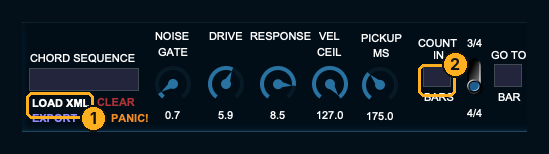
  1. In the SoloVoice window click LOAD XML (bottom-left) and open your MusicXML chart. Set the Cubase tempo to the chart’s tempo.

    SoloVoice carries the chart and follows Cubase’s transport: press space and the chord grid advances with the project.

    SoloVoice LOAD XML button and COUNT IN bars box
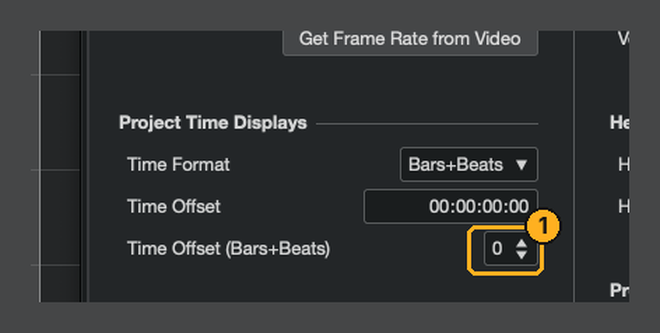
  2. Only if your backing track has a count-in (Band-in-a-Box style, two bars): Project ▸ Project Setup, set Time Offset (Bars+Beats) to 2, click OK, and answer No to “keep the project content at its bar positions”. The ruler now runs –1, 0, 1 … and set SoloVoice’s COUNT IN to 2 bars to match.

    Project Setup, Time Offset (Bars+Beats) Ruler starting at -1, 0, 1

E · Arranger (Orchestra edition)

The Arranger fires Divisimate pad changes (voicings, mutes, section colors) by bar number. You’ll see SoloVoice Arranger in the Instrument list only if you installed the Orchestra edition — Conductor users skip to section F.

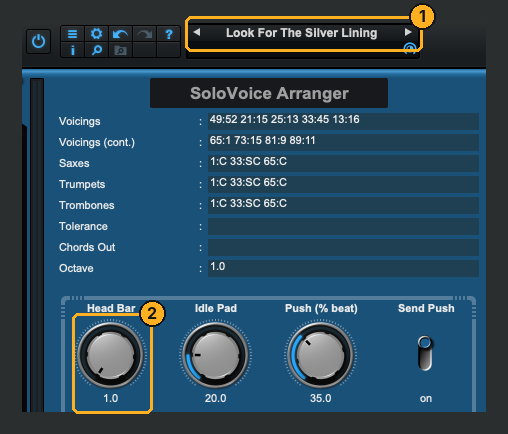
  1. Project ▸ Add Track ▸ Instrument: Instrument = SoloVoice Arranger, Input Routing = Not Connected, name it Arranger. In its window click the ≡ button (top-left of the blue toolbar) and load your song’s Arranger preset, or type your lanes.

    If you used the 2-bar Time Offset in step 11, turn Head Bar to 3 so chart bar 1 lands on Cubase’s bar 1.

    SoloVoice Arranger with a song preset loaded; Head Bar knob highlighted
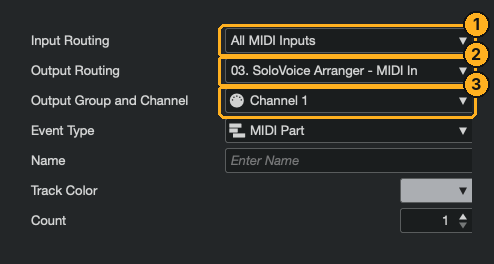
  2. Project ▸ Add Track ▸ MIDI. In the dialog set Input Routing = SoloVoice Arranger – MIDI Out, Output Routing = Divisimate Core, Channel 1, name it Arranger to Core, click Add Track.

    Divisimate’s track input is already taken by SoloVoice; this MIDI track is how Cubase merges a second source into it.

    Add MIDI Track dialog: input Arranger, output Divisimate Core, channel 1
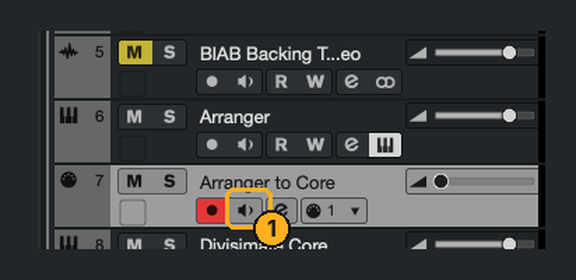
  3. Click the new track’s speaker-shaped Monitor button so it lights — a MIDI track only passes live input with Monitor on. Play from the top: the band’s voicing changes at the Arranger’s bars.

    Arranger to Core MIDI track with Monitor lit

F · Let the chairs follow the chart (Cubase’s Chord Track)

SoloVoice snaps your line to the chart. In Cubase, each chair can also be re-snapped by the Chord Track — Cubase’s built-in version of what the Satellites do in PatchWork. Outside-the-key chords land cleanly, with no extra plug-ins.

  1. In SoloVoice click EXPORT MIDI (bottom-left) and save the file. Drag that .mid into the Project window onto an empty area — it lands as a chord-notes MIDI part with one marker per chord.

    Marker track showing chord names from the SoloVoice MIDI export
  2. Click the imported MIDI part, then Project ▸ Chord Track ▸ Create Chord Symbols. A Chord Track appears with one chord event per bar. Walk it against the marker lane and fix any chord Cubase simplified: double-click the chord event and type it exactly as the marker reads (E7♭13, A♭13 …).

    Cubase’s analysis is nearly perfect but drops some extensions — the markers are the ground truth.

  3. Click a chair track (Alto Sax 1 …). In its Inspector open the Chords section (add it with Set up Sections if it isn’t shown) and set Follow Chord Track to Chords & Scales. Repeat for every chair; we run Chords on the bass trombone, which sounds best anchored to chord tones.

    If the Follow dropdown is greyed out: the track needs a MIDI part on it, even an empty one. Draw a short empty part on the track with the pencil tool and the menu comes alive.

G · Play

Click the ruler at the start of the song, press space, and sing. Press space to stop. Save the project as a template (File ▸ Save As Template) and you’ll never wire it again.

If something’s off

SoloVoice doesn’t react to the micSend slot powered on, pre-fader, going to 01 – SoloVoice; side-chain button lit in the plug-in header; audio track Monitor on.
I hear my own voiceSoloVoiceIN’s output should be No Bus.
Band is silentMonitor must be lit on Divisimate Core and on every chair (click the folder’s speaker). Core’s input must be 01. SoloVoice – MIDI Out.
Arranger changes land two bars earlySet its Head Bar to 3 when the project has a 2-bar Time Offset.
Follow Chord Track is greyed outPut a MIDI part on that track (an empty one is fine).
Stuck notes?None in our tests in Cubase 15. If you get one, press PANIC! in SoloVoice (bottom-left).

How SoloVoice works

SoloVoice never composes or generates a solo — the line is always yours. It converts your voice to MIDI, humanizes it, and places each note inside the scale-and-chord palette you’ve chosen for that bar. Set it to Chromatic and it leaves your pitch entirely alone.

1

Sing or scat

SoloVoice tracks your own monophonic line in real time. It’s optimized for the voice — but experiment freely: woodwinds, brass, any real instrument that can sing one note at a time into a mic.

2

It's humanized, not robotic

Breath-shaped velocity and expression are derived in real time — not a flat, robotic MIDI output — and your pitch can snap into the current chord or scale.

3

Follow the harmony

A live chord chart, guitar voicings, and a color-coded chroma strip show exactly what's "inside" over each chord — and the same palette is announced to every instrument behind a SoloVoice Satellite — to harmonize a whole orchestra to your voice, if you choose.

Live or in the studio. We designed SoloVoice to be hosted in Blue Cat's PatchWork standalone, which syncs to any DAW two ways, via MIDI Clock or MTC.

Built for

Musicians who already have the sound in their head — and the rig on their desk.

Divisimate and SWAM rig owners

You already own the band. Add a SoloVoice Satellite ahead of each instrument and one sung line harmonizes the whole section, chord by chord.

Composers who can carry a tune

The melody in your mind's ear, straight from your voice into a modelled instrument — without a keyboard between you and it. Sketch an idea in the time it takes to sing it.

Band-in-a-Box users who want to solo over their BIAB charts — on any instrument

Export your BIAB chart as MusicXML. Load it into SoloVoice, hosted in PatchWork. Set PatchWork to follow BIAB's MIDI Clock. Press play in BIAB — the two run in tandem, and you solo over your own arrangement, in key, live, on any instrument you can load.

Gigging musicians and worship leaders on a light rig

Learn a song fast from its chart, then perform it live with sung instruments. Or switch on CHORDS OUT, which is built into SoloVoice: as the chart plays, it sends each chord as block MIDI on its own channel, so a pad, a vibes patch, a piano VST3 or a cinematic scoring tool plays the changes under you — live, or as exported MIDI. A laptop, an interface, a mic and Blue Cat's PatchWork: one preset per song, a footswitch to change it, no DAW on stage.

In the box

Put a SoloVoice Satellite in front of every virtual instrument in your rig — and your voice controls a 13-piece Big Band or a whole orchestra.

On every change, SoloVoice announces the live palette — scale, chord tones, root — and each Satellite snaps its instrument to it. One sung line, to as many chairs as you like, harmonically correct on every chord, every scale override, every voicing preset.

YOUR VOICE SoloVoice Orchestral engine e.g. Divisimate Core SV Satellite VST3 e.g. SWAM SV Satellite VST3 e.g. SWAM SV Satellite VST3 e.g. SWAM ⋯ ⋯

Orchestra ships with this rig as a pre-wired PatchWork template, SoloVoice Big Band Rig — you insert your own Divisimate Core and SWAM instruments, and the manual explains the wiring layer by layer. And nothing here is limited to big band horns: the same Satellite conducts strings, a synth or other virtual instruments in your collection.

The Quick Start is built in. The manual reads like a lesson.

Press the “?” button in the plug-in’s toolbar and a five-page Quick Start opens right there — install to first solo in minutes. The full manual goes deeper: every control, and the voicing philosophy and scale logic behind it, written for musicians.

Have a look inside. The full manual (PDF) is available to download here, and it’s also included with every edition.

Simple, one-time pricing

Buy once, own it — or have the whole rig built with you.

System requirements

7-day trial Try the full Orchestra edition for 7 days. No credit card. Your key arrives by email, the seven days start when you first activate, and when you buy, a purchased key pastes into the same box — nothing to reinstall. Start the trial

SoloVoice

$149

Pay once, own it. The single-instrument edition — the Conductor on its own.

  • ✓ SoloVoice (the conductor), VST3 for macOS on Apple Silicon (M1 or later)
  • ✓ Sing or scat into a mic and drive any virtual instrument that takes a melodic line — horns, strings, leads — humanized in real time
  • ✓ Live chord chart, chroma strip & scale engine, plus the ready-wired Solo Chair PatchWork template
  • ✓ One license, up to three of your machines · v1.x updates included · email support
Buy SoloVoice — $149

Add the band later: the $50 Orchestra upgrade unlocks the Satellite and the Arranger in place — nothing further to install.

The full system

SoloVoice Orchestra

$199

Conductor + Satellite + Arranger (beta) — conduct the whole band.

  • ✓ Everything in SoloVoice
  • ✓ SoloVoice Satellite — insert as many as your rig has instruments
  • ✓ SoloVoice Arranger (beta) — schedules Divisimate pad changes and section modes from your chart, bar by bar
  • ✓ SoloVoice Big Band Rig — a pre-wired PatchWork template: insert your Divisimate Core and SWAM Big Band instruments and play
  • ✓ One license unlocks all three plug-ins, up to three machines · v1.x updates included · email support
Buy Orchestra — $199

Built with you

Custom Rig Build

By quote

Your big band, built one-on-one with the developer — the rig you hear in every video on this page.

  • ✓ A planning video call, and a shopping list of exactly what to buy — nothing more
  • ✓ The full build on your own Mac over screen share, tuned to your voice and your repertoire
  • ✓ Follow-up by email and scheduled calls until it plays the way you hear it · SoloVoice Orchestra license included
Email to inquire

Details discussed on inquiry · Mac only · [email protected]

What’s in the rig?Start with two things. Grow into the band.

SoloVoice makes no sound of its own — it plays whatever virtual instruments you point it at. At its most basic, the rig is two things.

  • Blue Cat’s PatchWork — the host. Both editions ship as ready-wired PatchWork templates and the Arranger runs off PatchWork’s transport, so it’s required. Like Kontakt, it runs as its own app or as a plug-in inside your DAW.
  • A microphone. Start with the dynamic already in your locker; at moderate volume it works fine. A supercardioid is better for scatting in front of monitors. We use the Shure Nexadyne 8/S (NXN8/S): its side and rear rejection means you can sing right in front of your speakers without the band bleeding back into SoloVoice.

Add any virtual instrument you own that likes a breath-shaped line — a SWAM horn, a modelled string, a lead synth — and you’re playing. The thirteen-piece big band in the demo adds three more:

  • Divisimate Core (Nextmidi) — the orchestration engine. Its factory SWAM Bigband performances are what you hear in every video: the SoloVoice Big Band Rig template is wired for them, and they are the settings we recommend.
  • SWAM Big Band Bundle (Audio Modeling) — the thirteen players. Load Audio Modeling’s factory Big Band preset for each chair and the rig plays on their settings, out of the box.
  • Band-in-a-Box (PG Music) — optional. Your charts export to MusicXML, and BIAB can run the transport while you solo over your own arrangement.

Add them whenever you like — the Big Band Rig template is already wired for them, seats waiting. Or have the whole rig built with you. Divisimate, SWAM and Ambiente, PatchWork, and Band-in-a-Box are trademarks of their respective owners and are sold separately by them.

Frequently asked questions

Does SoloVoice generate the solo for me?

No — SoloVoice never composes or generates a musical line. It converts, humanizes, and optionally snaps your own sung or scatted performance, and shows you the harmonic map to solo against. The melody is always yours.

What are the system requirements?

An Apple Silicon Mac (M1 or later) running macOS 15 Sequoia or later, Blue Cat’s PatchWork, an audio interface and a microphone. SoloVoice is developed and tested on M1 Max and M4 Max; the full thirteen-chair big band ran clean on both at a 128-sample buffer, using about 20 GB of memory, and a single instrument runs comfortably at 64. Intel Macs are not supported. Blue Cat's PatchWork is required as host — standalone, or as a plug-in inside your DAW. SoloVoice makes no sound of its own: you need an instrument on the other side, ideally one that responds to expression (CC11), such as a SWAM wind or brass.

Do I need Blue Cat’s PatchWork?

Yes. SoloVoice and its Satellite and Arranger components are a VST3-only plug-in suite for Mac. They were developed and tested to run in Blue Cat’s PatchWork as their supported host. If PatchWork is new to you, think of how Kontakt works: it opens as its own app or loads inside your DAW as a plug-in. PatchWork works the same way, and SoloVoice runs inside it. PatchWork runs standalone without a DAW, or as a VST3, AU or AAX plug-in. So whether you’re running Logic Pro, Cubase, REAPER or another DAW, the same SoloVoice setup carries over from one to the next. PatchWork also syncs with other gear and DAWs over MIDI Clock or MTC, as leader or follower. Blue Cat also offers a trial demo of PatchWork.

Can I use SoloVoice inside my DAW?

Yes, inside PatchWork — not on its own. Put PatchWork on an instrument track in your DAW, load the SoloVoice template inside it, and your DAW’s transport runs the show: play, stop, loop and tempo. Loading SoloVoice directly on a DAW track isn’t supported.

Do I need Divisimate and SWAM?

Not to use SoloVoice — out of the box it drives one instrument of your choice, and the Satellite will conduct a second, third or fourth instrument directly. The thirteen-piece big band in the videos uses Divisimate Core as the voicing engine and SWAM instruments as the players; both are sold separately by their makers. Orchestra includes that rig as a pre-wired PatchWork template: you insert your own Divisimate Core and SWAM instruments, load their factory Big Band presets, and play. The manual shows exactly how it is wired, and the parts list is here. Divisimate Core specifically — Divisimate 2 lacks the per-port channel arrangement the rig relies on.

Can you set the rig up for me?

Yes. The Custom Rig Build is a one-on-one engagement with the developer: a planning call, the full build on your own Mac over screen share, tuning to your voice and repertoire, and follow-up support by email and call, with an Orchestra license included. Pricing is quoted to your scope — email [email protected].

How does the license work?

Your key arrives by email a few minutes after purchase. Paste it into SoloVoice's chord field, be online for that one moment, and you're done — no account to log into and no check-ins afterwards. On the Orchestra edition, the Satellite picks the license up automatically once you activate SoloVoice — one key, no second step. One license covers up to three of your own machines, and you can move it yourself. Not sure yet? The 7-day trial is the full Orchestra edition with no credit card needed; when it ends, a purchased key pastes into the same box and unlocks everything in place.

Can I import my own chord charts?

Yes — load a MusicXML file exported from Band-in-a-Box, iReal Pro, or most notation software, and SoloVoice builds the chord track, voicings, and scale-degree guide automatically. Or skip files entirely and type the chart straight into the Chord Sequence box, tensions and all.

What's your refund policy?

SoloVoice offers a 7-day trial of the full Orchestra edition — please use it to confirm compatibility with your Mac and that SoloVoice suits your rig and workflow before you buy. All purchases are final once the download transaction has begun. If there is a billing problem or other matter of concern, email [email protected] with your order number. Nothing here limits your rights under consumer law where you live.

How do I get support?

Email [email protected] from the address you bought with, and include your license key if the question is about activation or moving machines.